
Stop Screenshotting — Translate Any App on Your iPhone
The screenshot-to-Google-Lens workflow is killing your productivity. Here's how to translate any app on your iPhone screen in real time — no screenshots, no app switching.
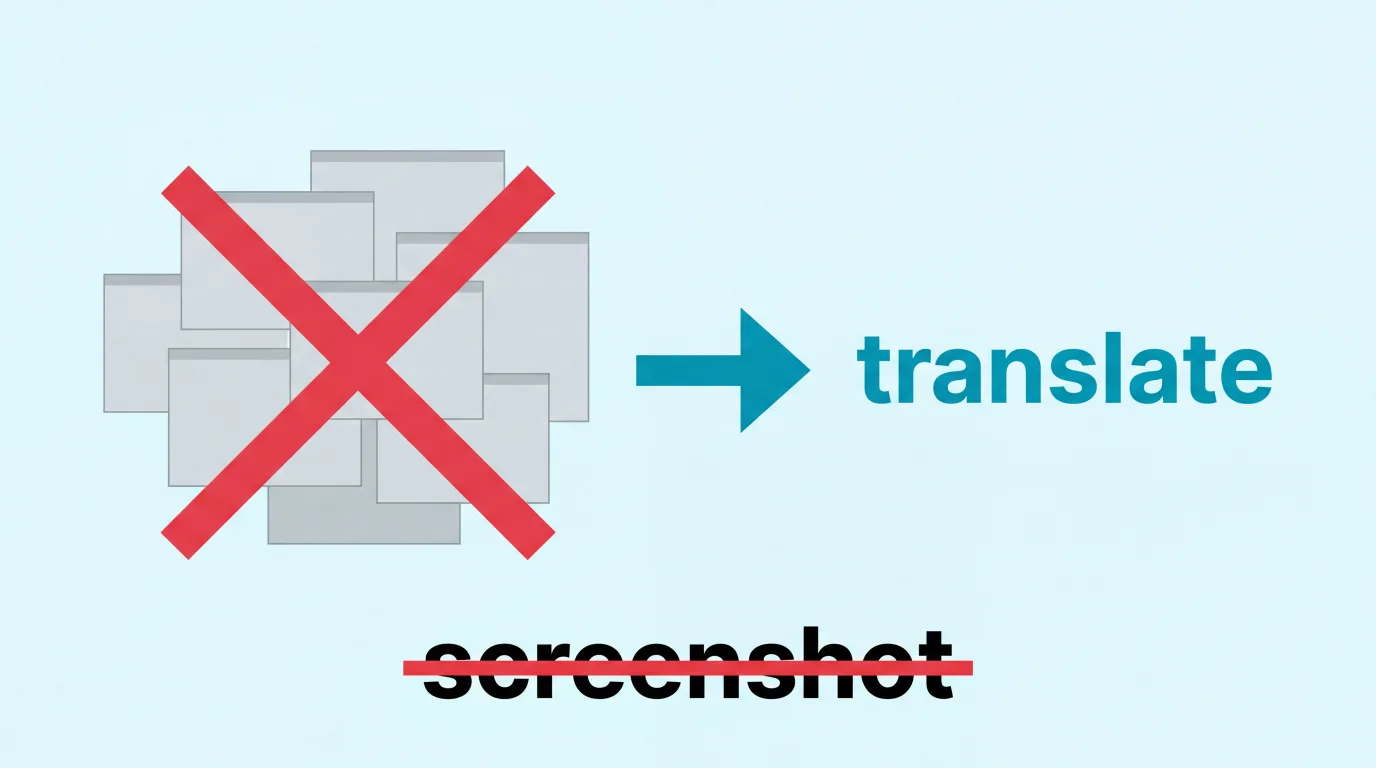
I take about 200 screenshots a day. Not because I want to — because that’s how you translate things on an iPhone.
See Chinese text in an app. Screenshot. Swipe to the thumbnail. Tap it. Select the text. Copy. Switch to Google Translate. Paste. Read the translation. Switch back to the app. Forget what you were looking at. Screenshot again.
My camera roll is 90% garbage screenshots I forget to delete. I have thousands of them. Blurry captures of Taobao listings, Japanese game menus, Korean banking screens, food delivery apps I couldn’t read. Each one representing a tiny interruption that broke whatever I was doing.
I’m tired of it. And if you’re here, you probably are too.
The Problem Nobody’s Solved (Until Now)
On Android, you can hold the home button and Google will translate whatever’s on screen. One gesture. Done.
On iPhone? Nothing. There’s no equivalent. Every Reddit thread about this ends the same way:
“No, taking a screenshot, going to Markup, and selecting and going to Translate in the context menu is the only way.” — r/ios
“I use a Chinese app for shopping and if I want to know what something says I need screenshot it, go to Google Photos, use Google Lens and translate it.” — r/ios
“When you are reading a long excerpt that doesn’t allow you to copy text from the app, the screenshot method can become quite tiring.” — r/ios
“Hey did you find any? I am looking for the same.” — every reply to every “tap to translate for iOS?” post
Apple has tried. Sort of. Apple Translate only works on selectable text — and most apps render text as images, custom components, or canvas elements that you can’t select. Visual Intelligence on iPhone 16+ requires you to point your camera at a screen — it’s designed for translating real-world signs, not your own phone.
So the screenshot pile grows.
The Floating Overlay Method
PiP Screen Translate puts a floating translation overlay on top of whatever app you’re using. It reads the text on screen with OCR and shows the translation right there — without leaving your app, without screenshotting anything.
Start a session, switch to whatever app you need, and the overlay translates what’s visible. Scroll down, it updates. Switch apps, it updates. That’s it.
Here’s what this looks like across the apps I use every day.
Manga and Comics
This is the one that gets people. You’re reading raw manga — Japanese text in speech bubbles, sound effects everywhere, narration boxes. The screenshot workflow here is brutal because you’re doing it every single page.
The overlay reads the Japanese text in each panel and shows the English translation. You can read through chapters without stopping to screenshot, crop, translate, and piece together what’s happening.
It’s not a professional scanlation — but when you’re caught up on the official release and want to read ahead in the raws, it gets the job done.
We wrote a full guide on this: How to Translate Manga on iPhone.
Chinese Shopping Apps
Taobao, Pinduoduo, 1688, Xiaohongshu — none of these have English versions. If you’re shopping for products from China (or you’re an expat), you’re translating constantly. Product titles, prices, size options, shipping terms, seller info.
The overlay translates everything visible — product names, prices, store info, navigation buttons. You can browse through dozens of listings without the screenshot bottleneck slowing you down.
For importers sourcing from 1688, this means you can actually compare prices and read MOQ terms without screenshotting every single listing.
Full guide for Chinese apps: How to Use Taobao in English on iPhone.
Korean and Japanese Banking
Living abroad means dealing with bank apps in another language. Korean banking apps (Shinhan, Hana, KB Kookmin) are notoriously complex even in Korean — in a language you can’t read, they’re impossible.
Same story with Japanese banking apps, utility payment screens, and government service portals. The text isn’t selectable. You can’t copy-paste it into a translator. Your only option was screenshots.
With the overlay, you can navigate account menus, read transaction histories, understand transfer screens, and find settings without guessing which button does what. One wrong tap in a banking app can be expensive — being able to actually read the interface matters.
Games in Japanese, Korean, Chinese
Story-heavy games like visual novels, JRPGs, and gacha games have massive amounts of text. Dialogue, menus, quest descriptions, item stats, skill trees. If the game hasn’t been localized, you’re looking at thousands of screenshots per playthrough.
The overlay translates dialogue as you play. It’s not going to replace a proper localization — but for games that will never get an English release, or when you want to play the Japanese version months before the English one drops, it lets you actually follow the story.
Full guide on translating games: How to Translate Japanese Games on iPhone.
Social Media
Scrolling through Xiaohongshu, Weibo, LINE, KakaoTalk, or any social platform in another language. Every post is a screenshot opportunity. A friend sends you a message in Chinese. Someone posts a meme in Japanese. A trending topic on Korean Twitter you want to understand.
The overlay translates posts, comments, captions, and UI elements as you scroll. You can actually browse a foreign-language social feed the way you’d browse Instagram — without stopping every three seconds to screenshot and translate.
Food Delivery
You’re in Tokyo, Seoul, or Shanghai. You’re hungry. You open the local food delivery app — Meituan, Coupang Eats, Uber Eats in Japanese. The menu is entirely in a language you can’t read. Every dish name, every ingredient description, every customization option.
Screenshot each menu item? That’s 30 screenshots for one restaurant. With the overlay, you just scroll through the menu and read what everything is. Spicy? Pork? Vegetarian? Now you know before you order.
Living in China and dealing with this daily? We wrote a full guide: Surviving the Language Barrier in China.
Why Not Just Use [Other Solution]?
I’ve tried everything. Here’s why none of them solved this:
Google Lens / Google Translate camera — Requires you to screenshot first (on iPhone), leave the app, open Google, wait for processing, read the translation, go back. It’s the workflow I’m trying to escape. And the camera mode is for pointing at real-world objects, not your own phone screen.
Apple Translate — Only works on selectable text. Most app UI text isn’t selectable. It can’t read text from images, custom components, or anything rendered as a canvas element.
Apple Visual Intelligence (iPhone 16+) — Requires pointing your camera at another screen. Designed for real-world signs and menus. You can’t use it to translate the phone you’re holding.
Safari Translate — Only works in Safari. Apps aren’t websites. And even web apps that load content dynamically often break Safari’s translation.
Copy and paste — Works when text is selectable. Most of the time, it isn’t.
Learning the language — I’m working on it. But I need to order lunch today.
How It Works
- Open PiP Screen Translate and start a translation session
- Switch to whatever app you need — the overlay stays floating on screen
- The overlay reads visible text with OCR and shows the translation
- Scroll, navigate, switch apps — it updates automatically
That’s the whole workflow. No screenshots, no app switching, no copy-pasting, no waiting.
FAQ
Does this work with any app?
Yes. The overlay floats on top of whatever’s on your screen — Taobao, manga readers, games, banking apps, social media, settings menus, anything.
What languages does it translate?
Japanese, Chinese (Simplified and Traditional), Korean, and more. Translates to English and other languages.
Is it better than Google Lens?
For single images, Google Lens gives you a more polished result. For ongoing use — browsing an app, reading through a manga chapter, navigating a banking app — the overlay is incomparably faster because you never leave what you’re doing. No screenshots, no app switching.
What about Apple’s built-in translation?
Apple Translate only works on selectable text. Most foreign-language apps render text as non-selectable UI elements, images, or custom components. The overlay reads everything on screen regardless of how it’s rendered.
Does it work offline?
OCR (reading the text) works on-device. Translation requires an internet connection.
How accurate is the translation?
Good enough to browse, navigate, and understand context. For critical details — financial transactions, medical information, legal documents — always verify with a human translator or more careful translation method.
I’ve deleted 3,000 screenshots since switching to this workflow. My camera roll finally has actual photos in it again.
PiP Screen Translate is available on the App Store. Free trial, no account needed.