
How to Use Taobao in English on iPhone (Without the Screenshot Nightmare)
Taobao doesn't have an English version. Here's how to actually browse, shop, and translate Taobao on your iPhone without screenshotting every page.

Taobao doesn’t have an English version. It probably never will. If you’re shopping on Taobao from outside China — or you’re an expat and your Chinese isn’t there yet — you already know the pain.
The “official” way to deal with this on iPhone is to screenshot every page, open Google Lens, wait for it to process, read the translation, go back to Taobao, forget what you were looking at, screenshot again. Repeat 40 times per shopping session.
There’s a better way now. Here’s how I actually use Taobao in English on my iPhone.
Why Taobao is Harder to Translate Than Most Apps
Most translation advice assumes the text on your screen is selectable. “Just long-press and hit Translate!” Cool, except Taobao renders most of its UI as images and custom components. Product titles in search results? Not selectable. Price breakdowns in product pages? Not selectable. Seller messages? Sometimes selectable, sometimes not.
Safari’s built-in translation doesn’t help either — Taobao’s mobile app isn’t a website. And even if you use taobao.com in Safari, half the content loads dynamically and Safari Translate just gives up.
So you’re stuck with screenshot → Google Lens → back to app. Over and over.
The Floating Translation Overlay Method
PiP Screen Translate puts a floating translation window over whatever app you’re using. It reads the Chinese text on screen using OCR and shows the English translation in the overlay — without leaving Taobao.
Here’s what that looks like on a Taobao favorites page:
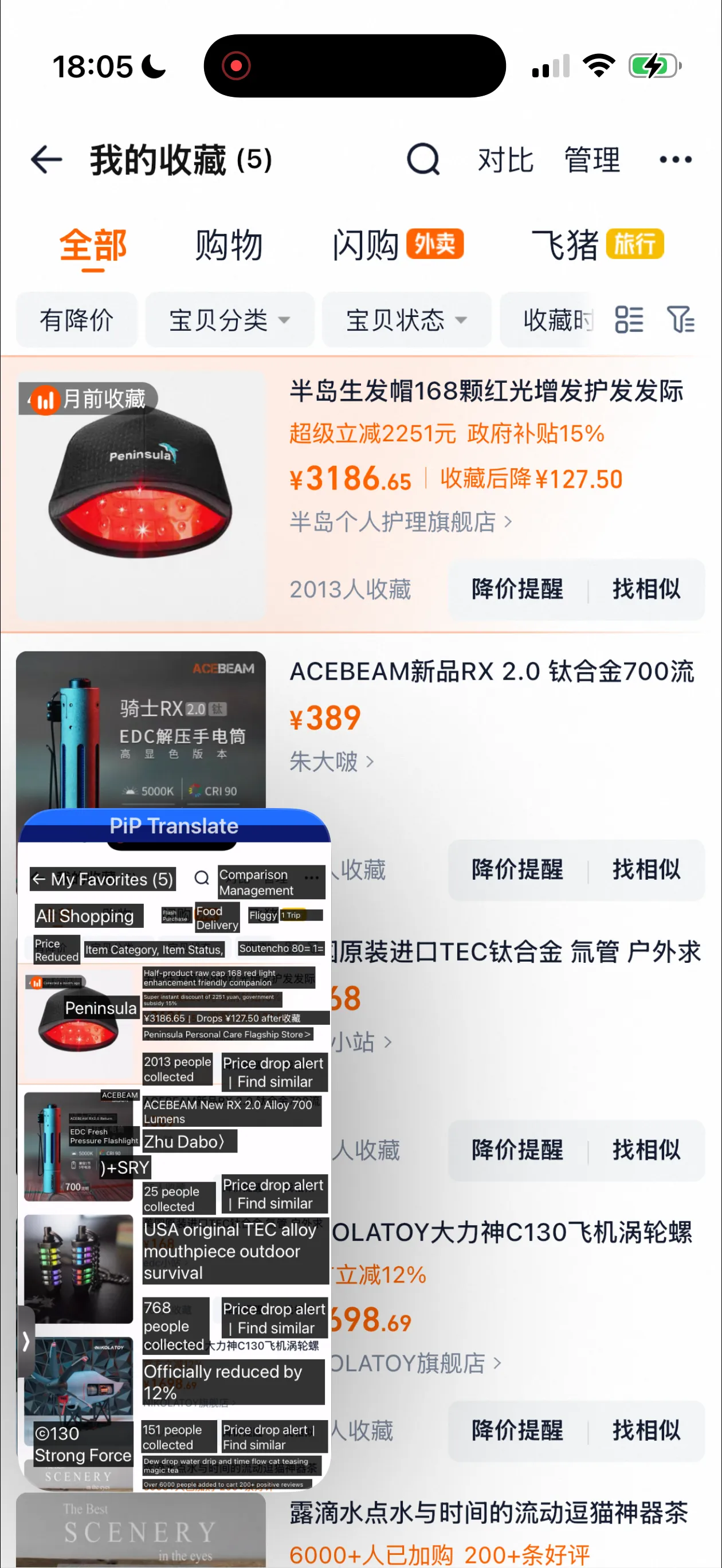
Taobao favorites page — product names, prices, and store info translated in the floating overlay
The overlay translates product names, prices, store names, and buttons. You can scroll through Taobao normally and the translation updates as you go.
How to set it up:
- Open PiP Screen Translate and start a translation session
- Switch to Taobao — the floating window stays on screen
- Browse normally — the overlay reads and translates whatever’s visible
That’s it. No screenshots, no app switching, no copy-pasting text into a translator.
What It Actually Translates Well
Let’s be honest about what works and what doesn’t.
Works great:
- Product titles and descriptions
- Prices and discount info (the red promotional text)
- Store names and seller info
- Navigation tabs and filter buttons
- Shipping details and delivery estimates
- Review summaries
Works okay:
- Text embedded in promotional banners (depends on font/contrast)
- Handwritten-style fonts some sellers use
- Size/color option buttons
Struggles with:
- Text baked into product images (like size charts that are just photos)
- Very small text in dense tables
- Livestream overlays
For most shopping — browsing, comparing products, reading descriptions, checking prices — it gets the job done.
Beyond Taobao: Other Chinese Apps This Works For
If you’re using Taobao, you probably need to translate other Chinese apps too. The same overlay method works across all of them:
Shopping
- Pinduoduo / Temu — group buying, even more Chinese-only than Taobao
- 1688.com — wholesale version of Taobao, essential for importers
- JD.com (Jingdong) — electronics and genuine goods
- Xiaohongshu (Little Red Book) — product reviews and recommendations
Daily Life (Expats)
- Meituan — food delivery, hotel booking, movie tickets
- Ele.me (饿了么) — food delivery
- DianPing (大众点评) — restaurant reviews (basically Chinese Yelp)
- Gaode Maps (高德地图) — navigation, often more accurate than Apple Maps in China
- Alipay mini-programs — the stuff inside Alipay that isn’t payments
If you’re planning a China trip or recently moved there, we wrote a full guide covering all of these: Surviving the Language Barrier in China.
Banking & Finance
- WeChat Pay settings — when you need to change something and can’t guess the menu
- Bank of China / ICBC apps — for managing your Chinese bank account
- Alipay — beyond payments, all the utility features
Tips for Shopping on Taobao with Translation
A few things I’ve learned using this workflow:
Use the translation for browsing, switch to a dictionary for details. The overlay gives you the gist of everything on screen fast. If you need exact specs or want to understand a specific review in detail, you can still screenshot that one thing and use Google Lens for a more careful translation.
Product titles are keyword-stuffed in Chinese too. Don’t be confused when a translated title is a wall of seemingly random words — Chinese sellers SEO their titles just like everyone else. The actual product info is usually in the description below.
Check the 月销 (monthly sales) number. Even with translation, learning to spot this number helps. High monthly sales = probably legit. The overlay will translate it but it’s faster to just recognize the pattern.
Use Taobao’s image search. If you have a photo of what you want, Taobao’s camera search is incredibly good. Saves you from having to type Chinese search terms entirely.
For Importers and Resellers
If you’re sourcing products from Taobao or 1688 for resale, translation isn’t optional — it’s how you make money. You need to:
- Compare prices across sellers accurately
- Read product specifications without guessing
- Understand shipping terms and minimum order quantities
- Communicate with sellers (for this, you’ll still need a proper translator or agent — OCR can’t help with live chat)
The overlay approach works well for the browsing and comparison phase. You can scan through dozens of listings quickly without the screenshot bottleneck slowing you down.
For 1688 specifically, the wholesale prices, MOQ (minimum order quantity), and shipping tiers are all displayed in Chinese. Being able to read them in real-time while browsing saves hours compared to screenshotting every listing.
FAQ
Does this work with Taobao’s mobile app or just the website?
Both. The floating overlay works over any app on your iPhone, including Taobao, 1688, Pinduoduo — whatever you have open.
What about the new Apple Translate / Visual Intelligence features?
Apple’s built-in translation works for selectable text and websites in Safari. Taobao’s app renders most text as non-selectable UI elements, so Apple Translate can’t access it. Visual Intelligence (on iPhone 16+) requires you to point your camera at a screen — it’s designed for real-world text, not translating your own phone screen.
Is the translation quality good enough for ordering?
For understanding what a product is, comparing prices, and navigating the app — yes. For reading exact material specifications or detailed size charts where one wrong word matters, double-check with a more careful translation method before ordering.
Does it work in China behind the firewall?
Yes. PiP Screen Translate works locally on your device for OCR. The translation API connects through standard HTTPS which works in China (unlike Google services which are blocked).
PiP Screen Translate is available on the App Store. Free trial, no account needed.