
iPhone Split Screen for Translation: The Workaround Apple Won't Give You
iPhones don't support split screen. But if you need it for translation — reading foreign apps, browsing in another language — there's a PiP overlay workaround that actually works.
Every few months, someone posts on Reddit asking why the iPhone still doesn’t have split screen. Samsung has had it since 2016. Android phones costing a fifth of what an iPhone costs have had it for years. And Apple’s response is basically: we don’t think you need it.
If you’ve searched “iPhone split screen” hoping to find a way to view two things at once on your phone, you already know the answer every article gives you: you can’t. Split View is iPad-only. Has been since it launched. Apple has shown zero interest in bringing it to iPhone.
But here’s the thing — most people searching for iPhone split screen don’t want to run two random apps side by side. They have a specific use case. And the most common one? Translation. You’re in a foreign-language app and you want to see the translation without leaving it.
For that specific problem, there’s a workaround.
Why People Actually Want Split Screen
The dream is straightforward: have a translation app on one half of the screen, the foreign-language app on the other. Read the original, see the translation, keep going. No screenshotting, no switching back and forth.
This comes up constantly for people who:
- Travel and need to use local apps (Taobao, Meituan, LINE, KakaoTalk)
- Learn languages and want to read content with a translation nearby
- Work with foreign suppliers and browse international platforms
- Live abroad and deal with apps that don’t have an English option
On Android, you’d just drag two apps into split screen and be done. On iPhone, you screenshot, open Google Lens or Apple Translate, read the result, go back to the app, forget where you were, repeat. It’s maddening.
As one Reddit user put it: “It’s embarrassing to pay $1000+ for an iPhone and know that a $100 Android is a more productive device in the aspect of multitasking.”
What Apple Actually Offers (And Why It Doesn’t Help)
Let’s run through Apple’s multitasking features and why none of them solve this:
Split View — iPad only. Not available on any iPhone, including the Pro Max.
Slide Over — Also iPad only.
Picture-in-Picture — This one is on iPhone, but it’s designed for video. You can shrink a YouTube video into a floating window while using another app. It doesn’t let you float a translation app.
App Switcher — Swipe up, tap the other app. It’s fast, but you lose visual context every time you switch. For translation, where you need to compare the original and translated text simultaneously, this doesn’t work.
Live Text / Visual Look Up — Can translate selectable text, but most foreign apps render text as images or custom UI elements that aren’t selectable. And it only works on text you can long-press.
Visual Intelligence (iPhone 16) — Designed for pointing your camera at real-world objects. Not for translating your own screen.
None of these give you what split screen would: two views visible at the same time.
The PiP Overlay Workaround
Here’s what actually works for the translation use case.
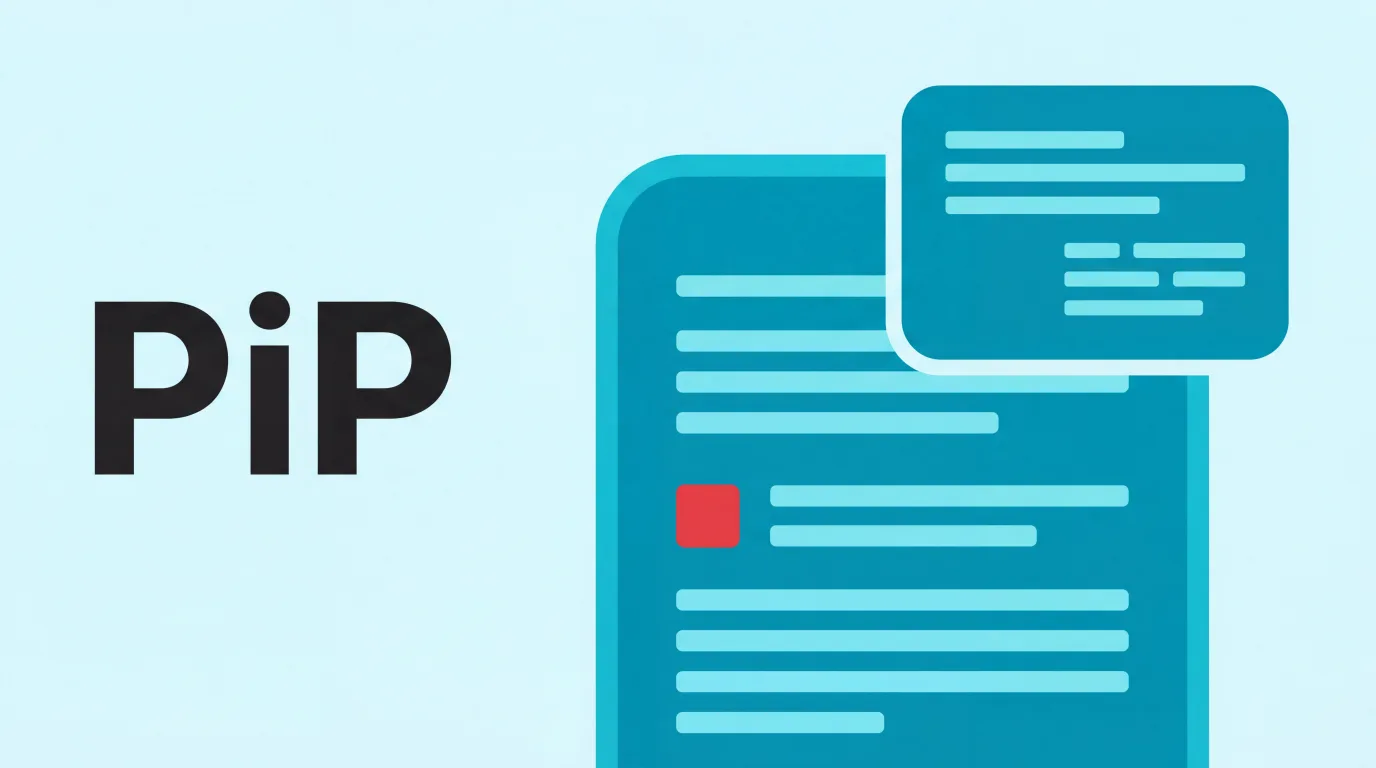
PiP Screen Translate uses iOS Picture-in-Picture — the same system that floats video — to put a translation overlay on top of whatever app you’re using. It reads the text on screen via OCR and shows the translation in a floating window.
It’s not split screen in the traditional sense. Your foreign-language app takes the full screen. The translation floats on top in a resizable window. But the result is the same thing people want from split screen: you see the original and the translation at the same time, without switching apps.
How it works:
- Open PiP Screen Translate and start a translation session
- Switch to whatever app you want to translate
- The floating overlay stays on screen, reading and translating visible text
- Scroll, navigate, tap around — the translation updates as the screen changes
That’s the whole workflow. No jailbreak, no shortcuts hack, no third-party launcher. It uses a standard iOS API that Apple provides for floating content.
What This Gets You (And What It Doesn’t)
Let’s be honest about what this workaround covers and where it falls short compared to true split screen.
What you get:
- Two “views” visible simultaneously — the app and the translation
- Works over any app — social media, shopping, messaging, maps, everything
- Translation updates as you scroll and navigate
- You can resize and reposition the overlay window
- No need to leave the app you’re in
What you don’t get:
- Two fully interactive apps side by side (the overlay is read-only)
- Resizable 50/50 split like Android or iPad
- The ability to type in one app while viewing another
- General-purpose multitasking beyond translation
If you need full split screen for non-translation reasons — like watching a video while texting, or copying data between two spreadsheets — this isn’t your answer. You genuinely need an iPad or an Android phone for that. Apple hasn’t budged and probably won’t.
But if your specific frustration is “I can’t read this app because it’s in another language and I’m tired of screenshotting everything,” this solves it.
Real Use Cases Where This Matters
Shopping on foreign e-commerce apps
Taobao, Pinduoduo, 1688, Coupang, Mercari — these apps are entirely in their native language. Browsing product listings while seeing translated names, prices, and descriptions in the overlay means you can actually shop without the screenshot loop.
Traveling and using local apps
When you’re in Japan, Korea, China, or anywhere with apps that don’t have English interfaces, the overlay lets you navigate Meituan for food delivery, KakaoMap for directions, or LINE for messaging — all while reading English.
Reading foreign social media
Scrolling through Xiaohongshu, Weibo, or any non-English social platform becomes usable. The overlay translates posts as you scroll through the feed.
Language learning
Some learners use this as a crutch — read the original text, glance at the overlay when stuck. It’s not a study tool, but it bridges the gap between “I can’t read anything” and “I know enough to get the gist.”
Why Apple Probably Won’t Add Split Screen
This has been a feature request since at least 2016. Apple’s position — based on their actions, not their words — seems to be:
-
iPhone screens are too small. Even the Pro Max at 6.7 inches would give each app a cramped ~3.3 inches in split view. Apple clearly believes the experience would be bad.
-
It conflicts with their design philosophy. One app, full attention, full screen. That’s the iPhone paradigm. iPad gets multitasking because it’s positioned as a productivity device.
-
They’d rather sell you an iPad. The cynical but likely accurate take. Want multitasking? Buy the device designed for it.
Whether you agree with Apple’s reasoning or not, the reality is that split screen on iPhone isn’t coming anytime soon. If you need it for translation, the PiP workaround is what exists today.
How to Set It Up
Getting the translation overlay running takes about 30 seconds:
- Download PiP Screen Translate from the App Store
- Open the app and choose your source/target languages
- Start a translation session
- Switch to whatever app you want to translate — the overlay follows you
The overlay works like any PiP window on iPhone — you can drag it around, resize it, or swipe it to the edge to temporarily hide it.
Supported languages: Japanese, Chinese, Korean, and other languages that are notoriously hard to translate with standard tools because their apps tend to render text as images rather than selectable text.
FAQ
Is this actually split screen?
No. It’s a floating overlay that gives you the same end result for translation: seeing two things at once. True split screen (two fully interactive apps side by side) isn’t possible on iPhone without a jailbreak.
Does it work with any app?
Yes. The overlay floats on top of whatever app is on screen — Safari, Instagram, Taobao, games, anything. It uses the system-level PiP feature.
What about Apple’s built-in translation?
Apple Translate works great for selectable text and Safari web pages. It doesn’t help with apps that render text as images (most Asian-language apps, menus, shopping apps) or apps where text isn’t selectable.
Does it drain battery?
It uses OCR and runs a translation in the background, so yes, more than having no overlay. In practice, it’s comparable to having a video call running — noticeable on long sessions but fine for normal use.
Will Apple ever add real split screen to iPhone?
Your guess is as good as anyone’s. iPhone 16 Pro Max didn’t add it. iOS 19 rumors haven’t mentioned it. The PiP workaround exists now, and it handles the translation use case that drives most split-screen demand.
PiP Screen Translate is available on the App Store. Free trial, no account needed.